Driver app preview
A clear look at the GetOttam driver experience
Follow the mobile workflow from sign in to dispatch, vehicle verification, job handling, trip completion, and earnings review.
Mobile flow
Screens shown in sequence
Each step below follows the attached screenshot filenames from `1.jpeg` through `9.jpeg`.
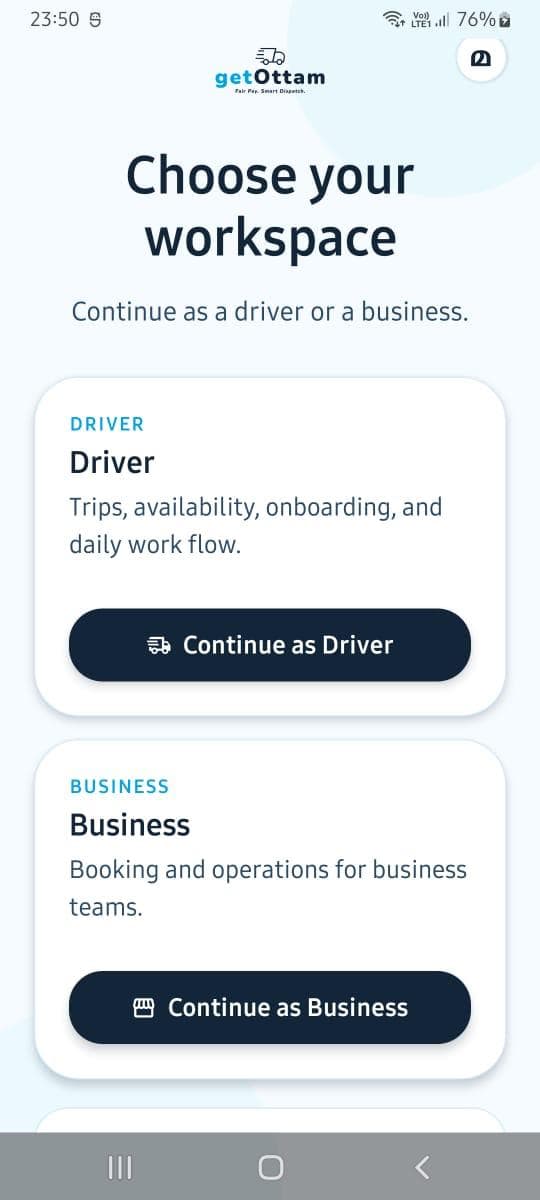
Choose workspace
Start in the driver workspace with a focused role selection screen.
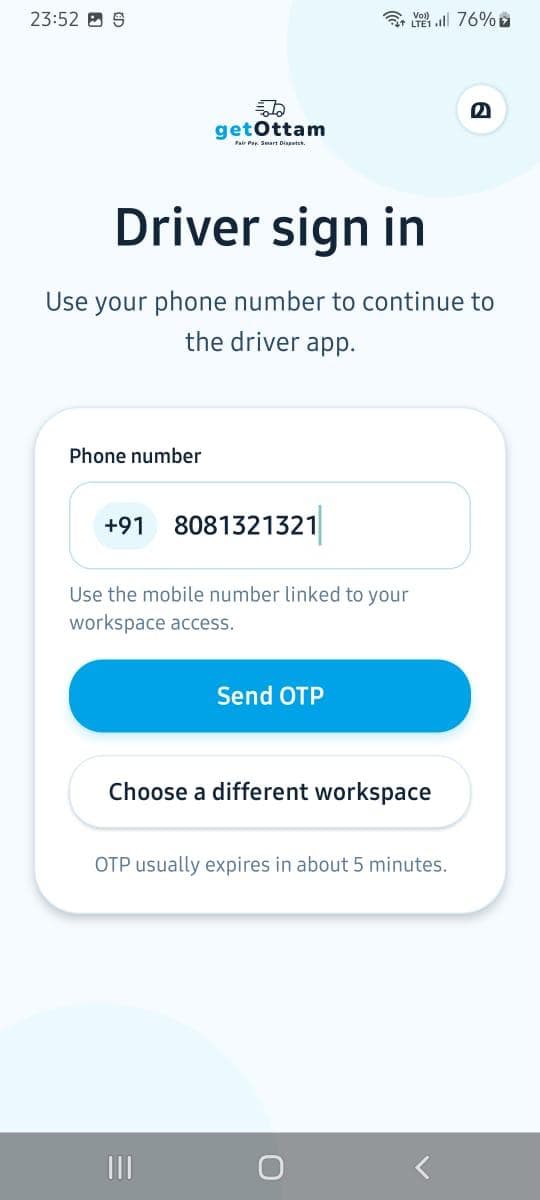
Sign in
Continue with the phone number linked to driver access.
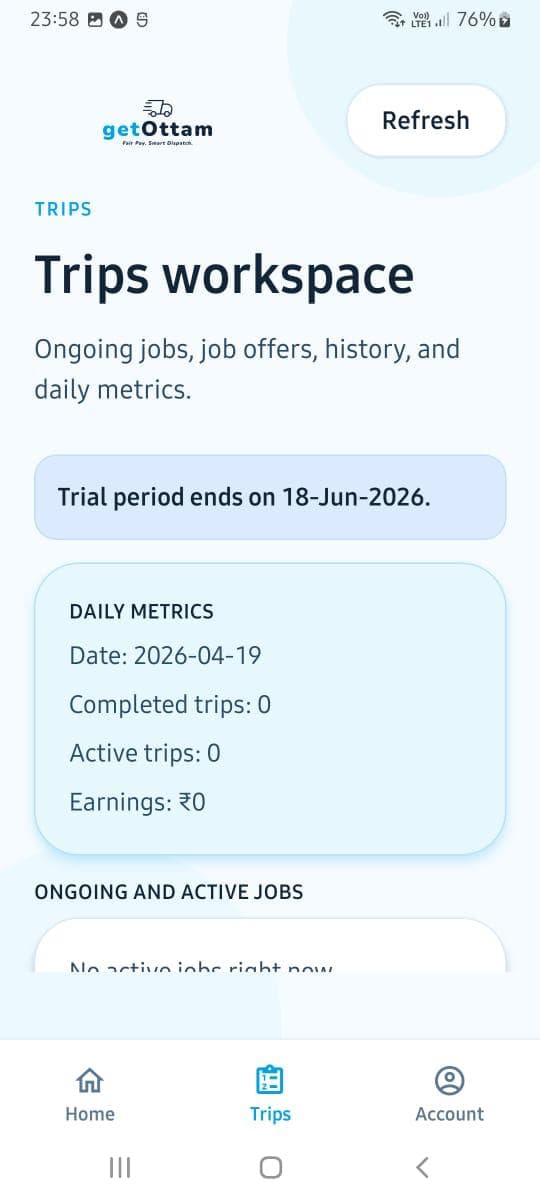
Trips workspace
See active jobs, offers, history, trial status, and daily metrics.
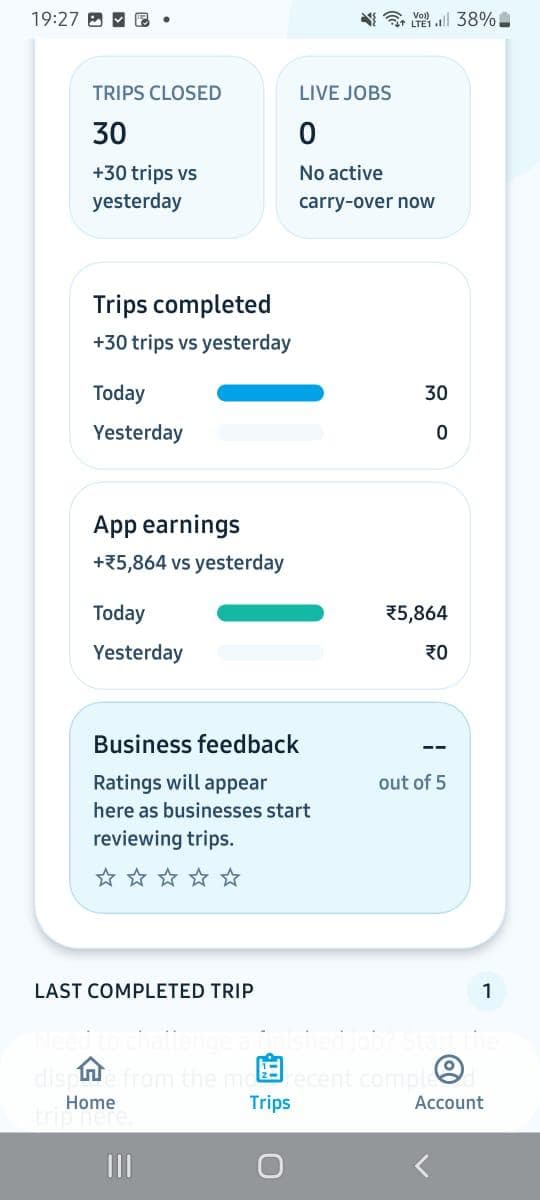
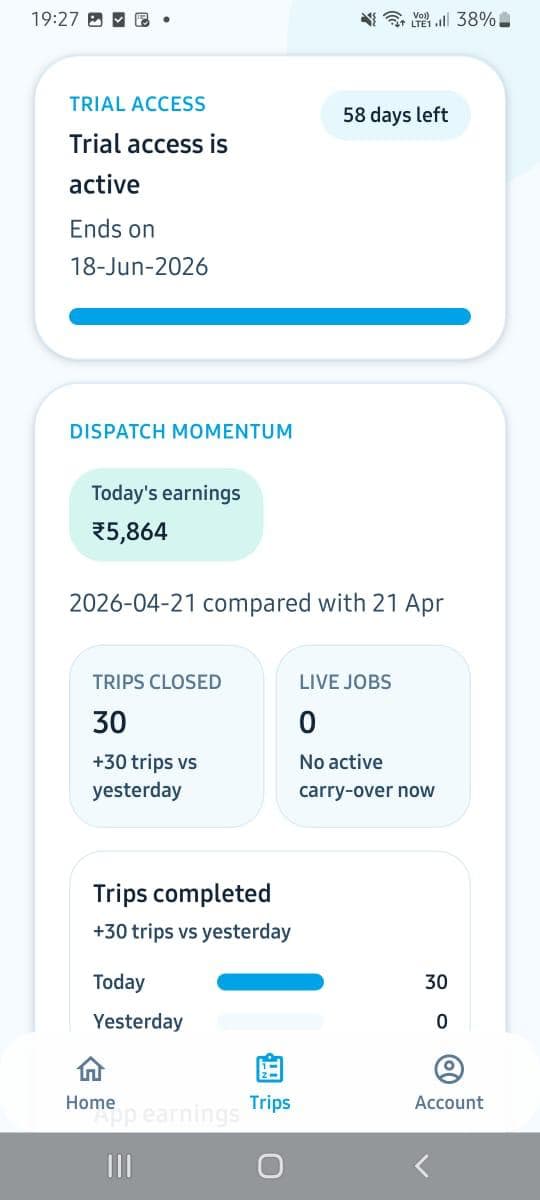
Dispatch momentum
Track trial access, trip volume, live jobs, and earnings at a glance.
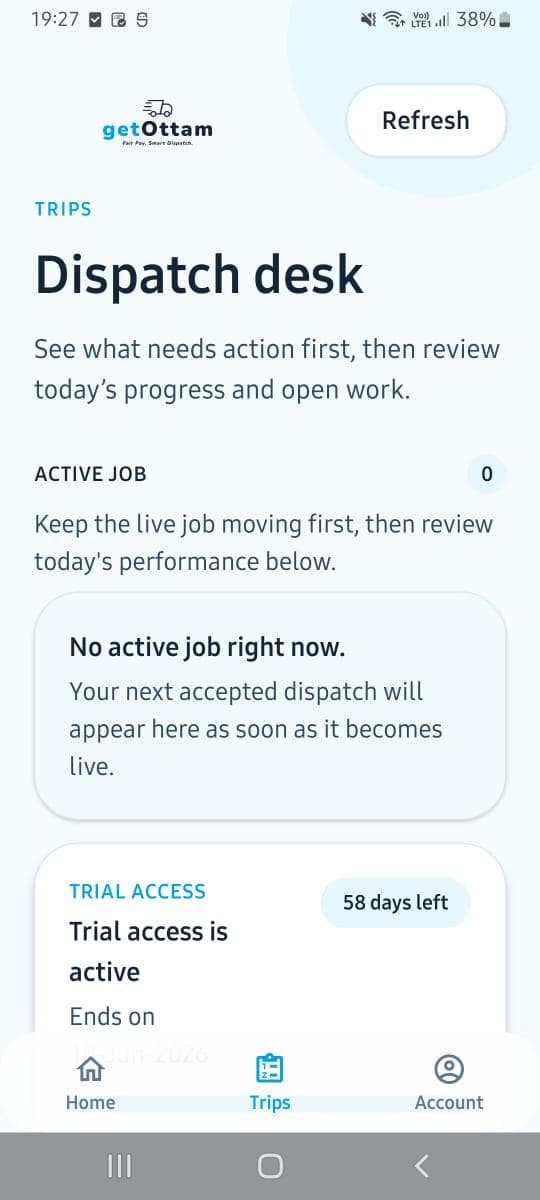
Dispatch desk
Review the live job queue and today's progress in one clean workspace.
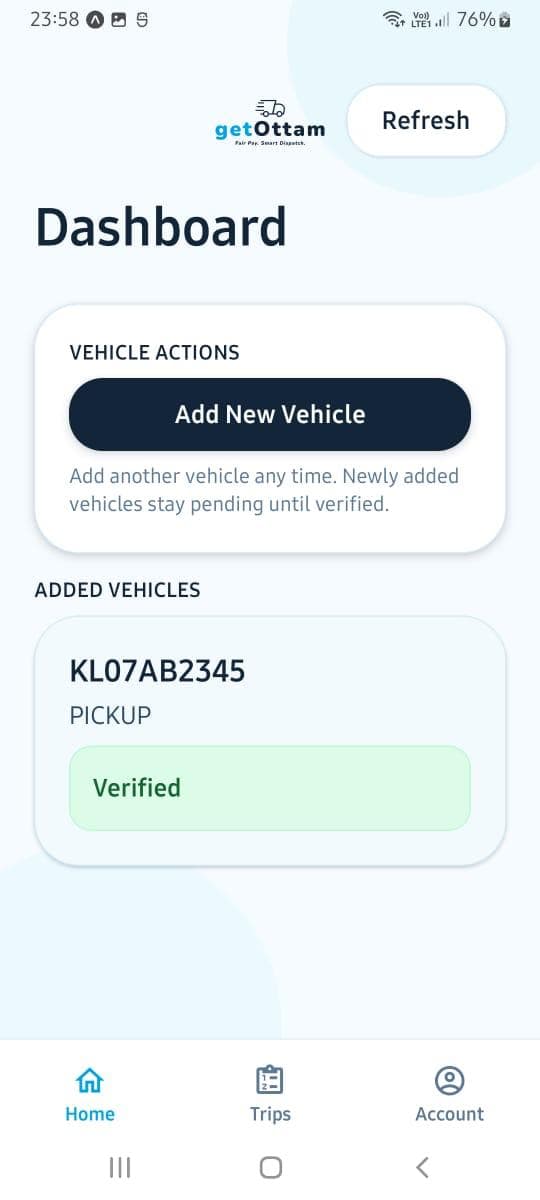
Vehicle dashboard
Add vehicles and review verification status from the driver home screen.
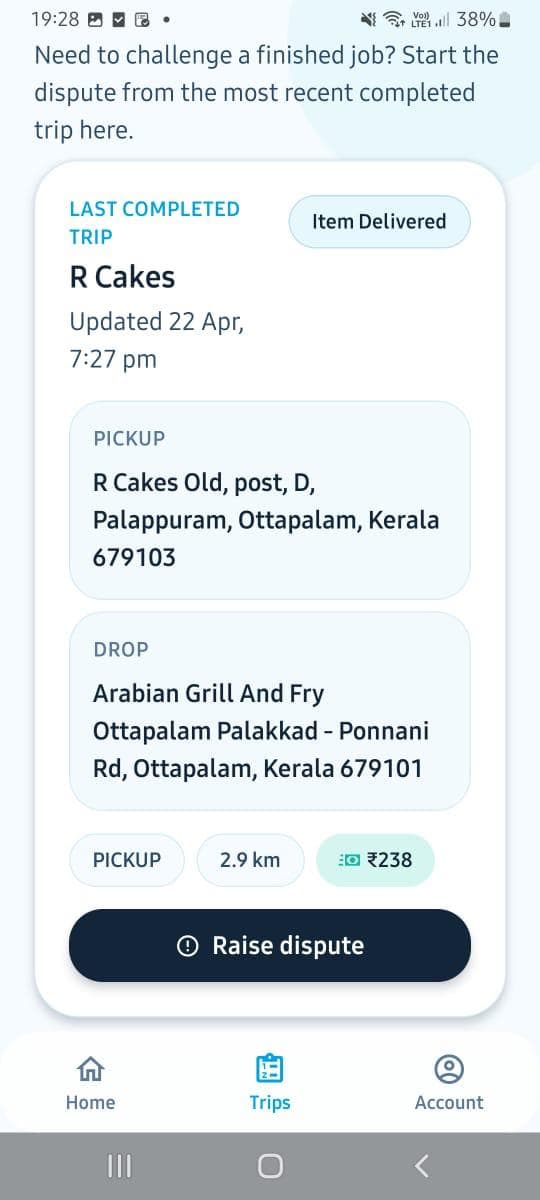
Completed trip
Review pickup, drop, distance, fare, and dispute actions after delivery.
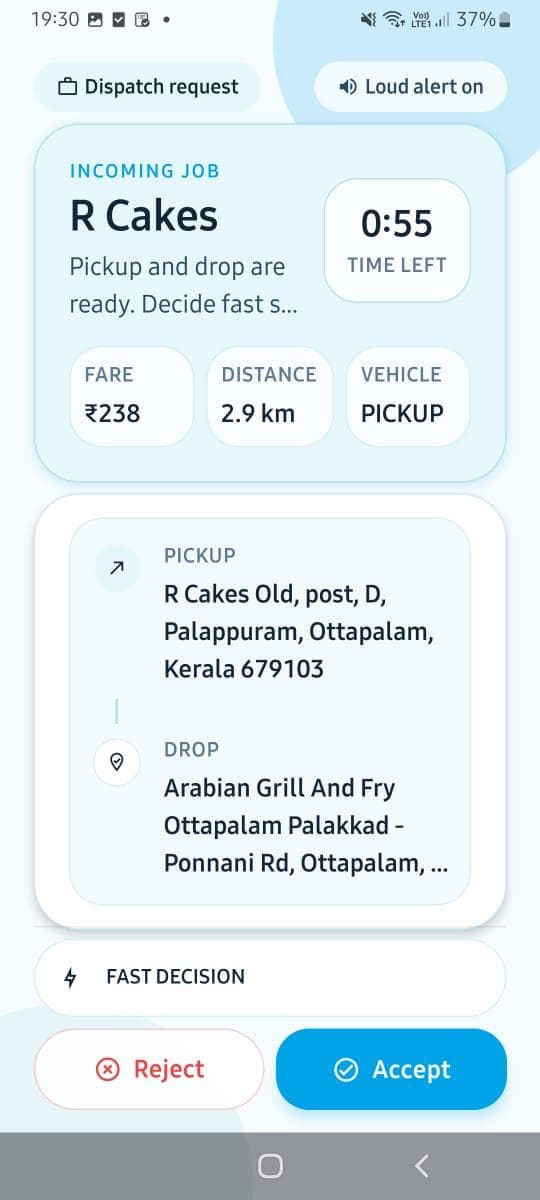
Incoming job
Accept or reject dispatch requests with fare, distance, and timer context.
Performance details
Compare completed trips, app earnings, and feedback in the trips view.